ripply can let you know the moment somebody reports something, adds a note or a photo, or replies on one of your stays. When those notifications do not appear, the cause is almost always a switch on the device itself, not in ripply. This guide finds it, one check at a time.
First, send yourself a test
- Open ripply. Guests: Profile, then Notifications. Hosts: your account menu, then Notifications.
- Make sure On this device is switched on.
- Tap Send a test. A notification should appear within a few seconds.
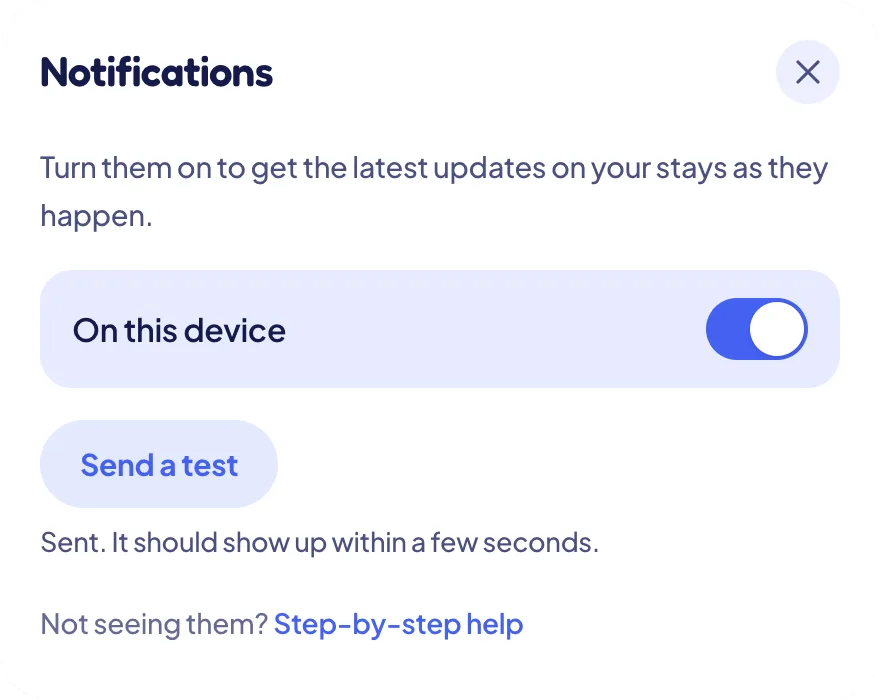
If ripply says Sent, it has done its part: the notification was handed to your browser’s delivery service. If nothing shows up, the rest of this guide is about your device.
Worth knowing: you are never notified about your own reports, notes or replies, only about what other people do. And every device signed in to your account counts as you, so testing with a second device of your own will not work either. The test button is the quickest check.
On a Mac with Chrome
A Mac keeps its own list of which apps may show notifications, separate from Chrome’s. Chrome appears in it twice, and both can be off even when Chrome itself allows ripply.
- Open the Apple menu, then System Settings, then Notifications.
- Scroll to Application Notifications and find Google Chrome and Google Chrome Helper (Alerts).
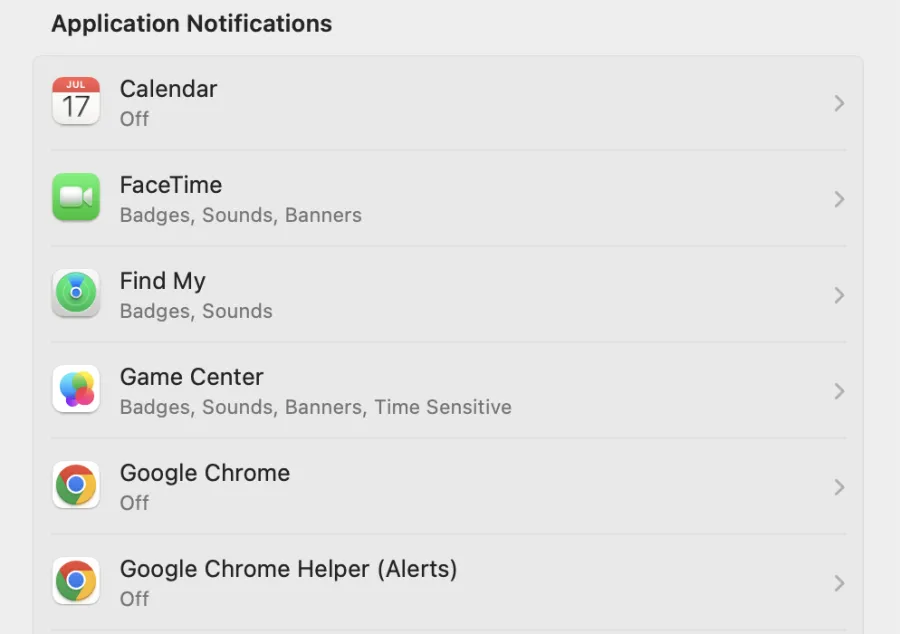
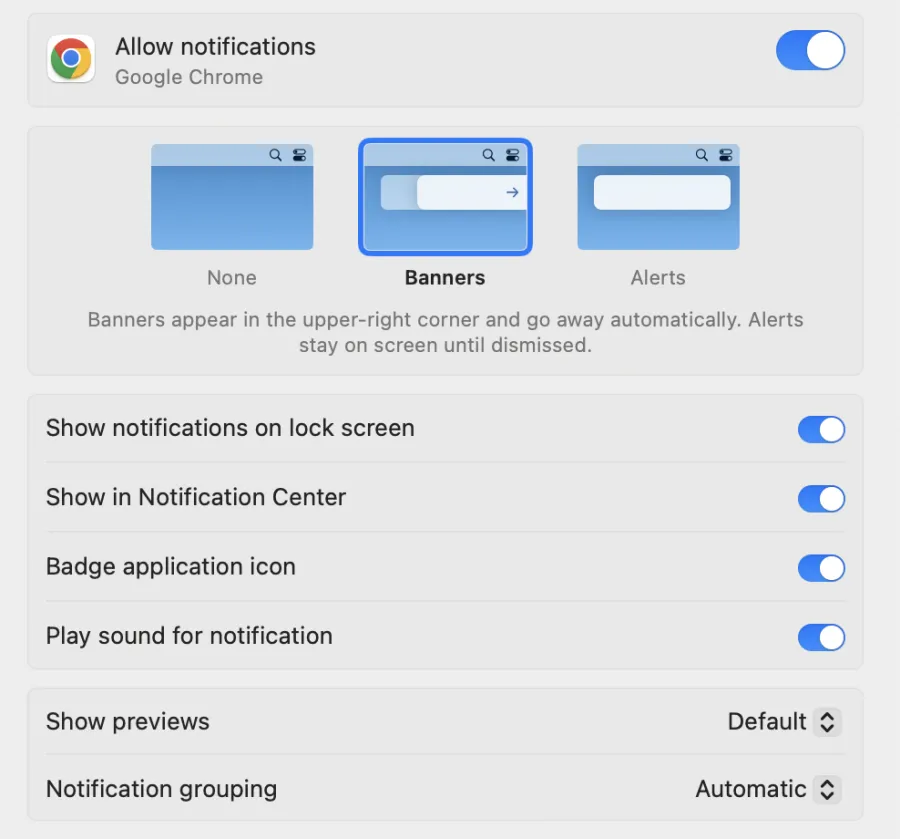
- Click Google Chrome, turn on Allow notifications and choose Banners (they slide in and go away) or Alerts (they stay until you close them).
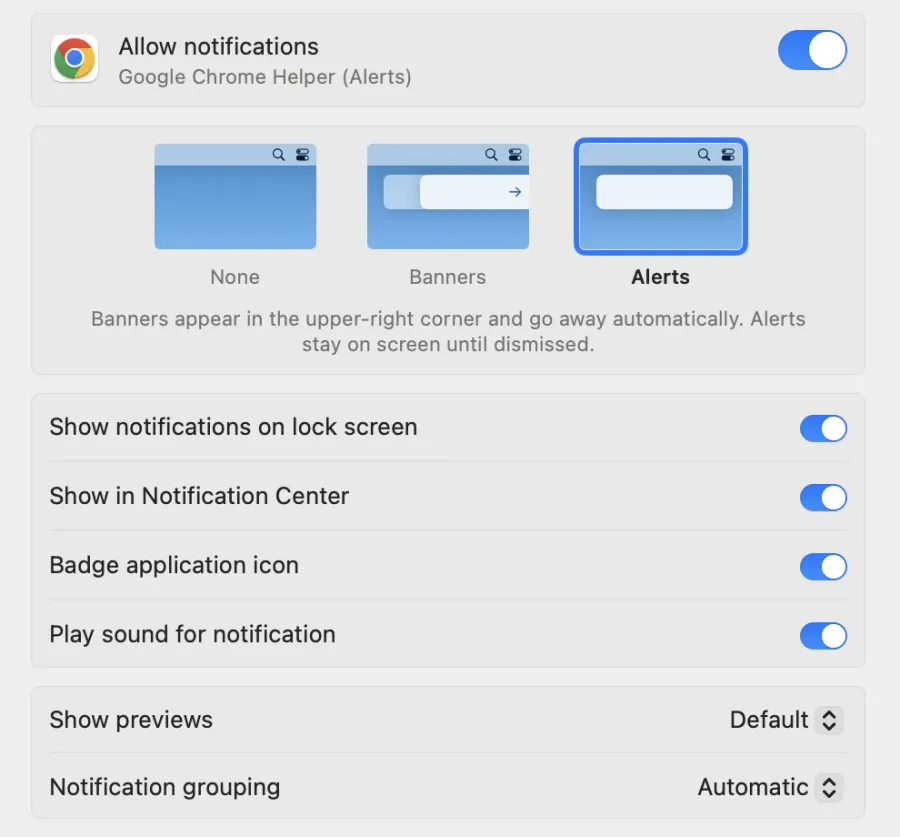
- Go back, click Google Chrome Helper (Alerts) and do the same.
- Quit Chrome completely with ⌘Q (closing the window is not enough) and open it again. Chrome only notices the change after a restart.
- Send a test again.
Still nothing? Check the menu bar for a Focus or Do Not Disturb icon (a moon or a person): Focus hides notifications. And click the clock at the top right to open Notification Center: if the test is listed there, it arrived, and only the style (step 3) needs changing.
Using Safari instead? In Safari’s menu choose Settings, then Websites, then Notifications, and set joinripply.com to Allow. Safari has its own entry in System Settings, Notifications too.
When the browser has blocked ripply
If you once answered Block when the browser asked, ripply shows Blocked and cannot ask again. Only the browser can undo it:
- Chrome or Edge on a computer: click the icon at the left of the address bar, turn on Notifications (or open Site settings and set Notifications to Allow), then reload the page.
- Firefox: click the icon at the left of the address bar and remove Blocked next to Send notifications, then reload.
- Chrome on Android: tap the icon at the left of the address bar, then Permissions, and turn on Notifications.
Then open ripply’s Notifications panel again and switch it on.
On Windows
- Open Settings, then System, then Notifications.
- Make sure notifications are on, and that your browser (Chrome or Edge) is switched on in the list of apps.
- Check Do not disturb is off.
On Android
- If you installed ripply on your home screen: press and hold its icon, tap App info, then Notifications, and turn them on.
- Chrome sometimes holds back notifications from a site it does not know well yet and labels them possible spam. If you see that, open it and tap Show notifications.
- Battery saver can delay notifications until the phone wakes up.
On an iPhone or iPad
On iPhone, websites can only send notifications once they are added to the home screen (iOS 16.4 or later). Open ripply in Safari, tap Share, then Add to Home Screen, and turn notifications on from the installed ripply.
Already installed? Open Settings, then Notifications, then ripply, and turn on Allow Notifications. A Focus mode can hide them too.
Still nothing?
Private or incognito windows cannot receive notifications at all; use a normal window.
A VPN, a company firewall or some security software can block the connection browsers use to receive notifications. Try once with them paused.
If you have tried everything here, write to hello@joinripply.com with your device and browser, and we will help.